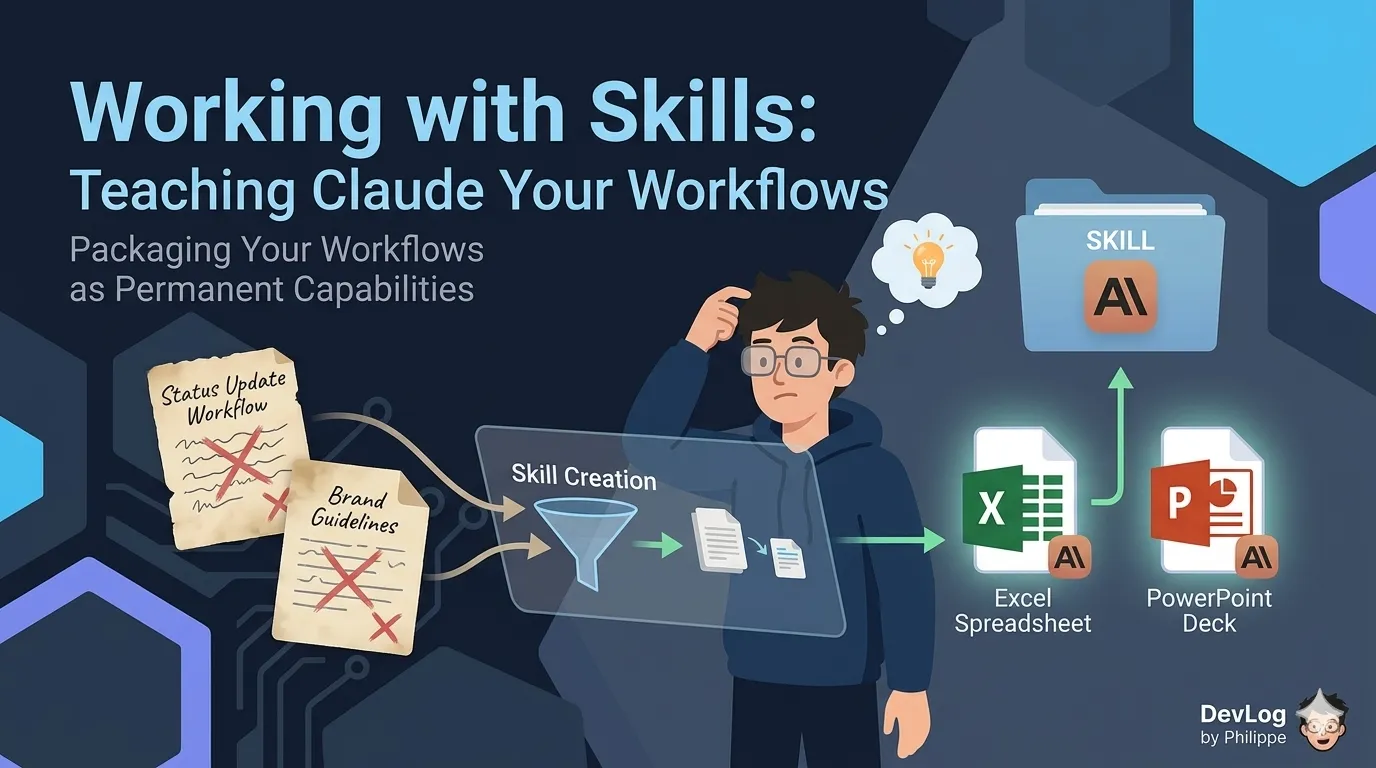
Imagine you’ve spent weeks refining the perfect format for your team’s weekly status updates. Specific sections, a particular tone, standard callouts for risks and wins. The first time you ask Claude to draft one, you walk it through every detail. The second time, you do it again. The third time, you start wondering whether there’s a better way.
There is. It’s called a Skill.
Skills are one of the most practically useful features Claude offers, because they turn a one-time explanation into a permanent capability. Once you’ve packaged a workflow as a Skill, Claude applies it automatically whenever the context calls for it — without you re-uploading guidelines, re-explaining standards, or hunting for that document where you wrote everything down.
This post walks through what Skills are, how they work, how to use the ones Claude comes with, how to create your own, and how they fit alongside other Claude features like Projects and connectors. No technical background is required — by the end, you’ll have a clear picture of how Skills can make Claude a more consistent and capable partner for the work you do most often.
What Is a Skill, Really?
At its simplest, a Skill is a folder of instructions, reference materials, and (optionally) scripts that Claude can pull up when it needs them. Think of it as a playbook Claude keeps on the shelf — one that it reaches for automatically when the situation calls for it.
A Skill might contain:
- Instructions that tell Claude how to do a particular task — the steps, the standards, the things to watch out for.
- Reference materials like brand guideline documents, templates, or examples of finished work.
- Scripts (for more advanced Skills) that Claude can run to handle things like data cleaning, file formatting, or calculations more reliably than instructions alone.
Every Skill has one essential file called SKILL.md. This is where Claude reads the Skill’s name, a short description of what it’s for, and the detailed instructions for carrying out the work. Everything else in the folder — templates, example outputs, scripts — is optional and loaded only when needed.
The Two Kinds of Skills
There are two categories of Skills you’ll work with.
Anthropic-Built Skills
These come with Claude. They’re maintained by Anthropic and cover common professional tasks — creating Excel spreadsheets, Word documents, PowerPoint presentations, and PDFs. You don’t install them manually, and you don’t have to tell Claude when to use them. When you ask Claude to “put together a Q3 results deck” or “build me a monthly budget spreadsheet,” it automatically reaches for the right built-in Skill and produces the file.
These Skills matter more than they sound like they should. Before Skills existed, getting Claude to produce a properly formatted Excel file with working formulas, or a branded PowerPoint deck with consistent styling, took careful prompting and a lot of checking. With the built-in Skills active, Claude knows how to create these files well — the output is more consistent, more professional, and requires less back-and-forth.
Custom Skills
These are Skills you (or your organization) create. They capture workflows specific to how you work:
- A brand guidelines Skill that keeps every presentation on-style.
- A meeting notes Skill that formats every set of notes the way your team prefers.
- A financial modeling Skill that uses your firm’s specific validation approach.
- A legal contract review Skill that flags risky clauses and suggests standard language.
- A customer-email Skill that matches the tone your support team uses.
Custom Skills are where the real power lies. Anything you catch yourself explaining to Claude repeatedly is a candidate for a Skill.
Enabling Skills
Before you can use Skills, two things need to be turned on in your account.
On individual plans (Free, Pro, Max), go to Settings > Capabilities and make sure Code execution and file creation is enabled. Then go to Customize > Skills and toggle on the example Skills you’d like Claude to use. Skills rely on code execution to run, so if code execution is off, your Skills won’t work either.
On Team and Enterprise plans, the setup is a two-stage process. An Owner in the organization must first go to Organization settings > Skills and enable both Code execution and file creation and Skills at the organization level. Once that’s done, individual users can manage their personal Skills in Customize > Skills, just like on the individual plans. On Team plans, Skills are enabled by default at the organization level, so setup is a little simpler.
From the Customize view, you can also browse Claude’s unified directory — a catalog that includes Skills alongside connectors and plugins. Click the ”+” button and select Browse skills to see what’s available, then click Install on any Skill you’d like to add to your list.
Using Skills
Once Skills are enabled, using them is almost invisible. You don’t invoke them manually. You just ask Claude for what you need.
Say “Create an Excel spreadsheet tracking monthly expenses for a small team of five” and Claude selects the appropriate Skill, builds the file, and hands it back to you. If you’ve uploaded a custom Skill that teaches Claude your company’s brand style, a request like “Draft a one-pager introducing our new product to enterprise customers” will trigger that Skill automatically and produce something that looks like your organization created it.
One thing worth knowing: Skills are composable. Claude can combine multiple Skills in a single response. If you ask for a presentation that follows your brand guidelines and incorporates data from a financial analysis workflow, Claude can apply both Skills together without being told to. You don’t orchestrate the combination — Claude handles it.
You can often see Skills at work in Claude’s reasoning as it plans its response, which is a nice way to understand what it’s doing and why.
Creating Your Own Skill
This is the part people usually expect to be hard. It isn’t — especially not anymore.
There are two ways to create a custom Skill. The first is to write the files yourself: a SKILL.md file in Markdown with the right metadata at the top, plus any supporting templates or scripts. This gives you full control and is a reasonable path if you’re comfortable with file structures. Anthropic maintains a GitHub repository with template Skills you can use as a starting point.
The second way — and the one that makes Skills accessible to everyone — is to create a Skill by talking to Claude. Anthropic provides a built-in “skill-creator” Skill that guides you through the process. You describe your workflow in plain language, Claude asks follow-up questions to clarify the details, you upload any reference materials the Skill should draw on, and Claude produces the properly-formatted Skill files for you. You download the resulting folder as a ZIP, then upload it in Customize > Skills.
Under the hood, every Skill needs two pieces of metadata in the SKILL.md file: a name (up to 64 characters) and a description (up to 200 characters). The description is critical — it’s the short summary Claude reads first to decide whether the Skill applies. A vague description (“Helps with documents”) will make Claude slow to invoke the Skill. A specific one (“Apply Acme Corp brand guidelines — colors, fonts, and logo usage — to presentations and external documents”) will help Claude match it accurately.
Here’s what the top of a simple SKILL.md file looks like:
---
name: Brand Guidelines
description: Apply Acme Corp brand guidelines to all presentations and documents
---
## Overview
This Skill provides Acme Corp's official brand guidelines for creating
consistent, professional materials.

## Brand Colors
- Primary: #FF6B35 (Coral)
- Secondary: #004E89 (Navy Blue)

## Typography
Headers: Montserrat Bold
Body: Open Sans Regular
You don’t need to write this by hand if you’d rather not. The conversational creation process generates it for you. But it’s useful to see that there’s no mystery behind the file — it’s plain Markdown with a small metadata header.
Sharing Skills Across a Team or Organization
On individual plans, Skills live in your own account. On Team and Enterprise plans, there’s more you can do.
Organization provisioning. Owners can upload Skills at the organization level, which makes them appear automatically in every team member’s Skills list. Provisioned Skills are enabled by default for everyone, though individuals can still toggle them off if they don’t need them. This is how organizations standardize workflows: a single properly-built Skill for, say, financial reporting ensures every analyst gets consistent output, without each person having to upload the Skill themselves.
Peer sharing. Individual members can also share Skills they’ve built with specific colleagues or — if an Owner has enabled it — publish them to an organization-wide directory. Both sharing options are off by default and need to be turned on in Organization settings > Skills.
Shared Skills are view-only for recipients: you can enable and use a Skill someone shared with you, but you can’t edit its contents.
How Skills Fit Alongside Other Claude Features
Skills are one of several ways to customize Claude’s behavior. Here’s how they compare to the others.
Skills vs. custom instructions. Custom instructions are preferences that apply universally to all your conversations — things like “ask clarifying questions before starting” or “keep explanations concise.” Skills are different: they’re task-specific, and they only activate when the context matches. A custom instruction applies to everything; a Skill applies to one kind of work.
Skills vs. Projects. A Project is a workspace with its own chat history, knowledge base, and instructions — a place to keep everything related to a particular initiative. A Skill is a capability Claude applies wherever it’s relevant. The simplest way to think about it: Projects are about the what (reference materials, context, team data). Skills are about the how (the procedure for doing a task). You’ll often want both. A Project holds your research files; a Skill teaches Claude how to turn them into the kind of memo you like.
Skills vs. connectors (MCP). Connectors — which use a technology called the Model Context Protocol, or MCP — link Claude to external services and data sources like Google Drive, Slack, or your company’s systems. Skills teach Claude how to work effectively once it has access. You use both together: connectors give Claude the tools; Skills tell it how to use them well.
Skills are portable. Anthropic publishes the Agent Skills format as an open standard, which means a Skill you write isn’t locked to Claude. The same Skill format works across AI platforms that adopt the standard — so the time you invest in building good Skills isn’t trapped in a single tool.
When to Create a Skill (and When Not To)
Not every task benefits from a Skill. A one-off request — “summarize this article” or “help me brainstorm names for a new product” — is better handled by just asking. Writing a Skill for something you’ll do once is overkill.
Create a Skill when you see a clear pattern:
- You’ve done the task before and expect to do it again.
- The task has specific rules, a consistent structure, or a required format.
- You keep re-explaining the same things to Claude.
- The quality of the output matters enough that you want consistency, not improvisation.
Some strong candidates: periodic reports, templated communications, data analysis workflows that follow a set methodology, document generation that needs to match a brand style, onboarding guides that need to be created per-role, and any process where “we always do it this way” is true.
What to Do Next
If you haven’t yet, enable a couple of the built-in Skills and try them. Ask Claude to create a spreadsheet or a presentation and notice the difference in quality compared to what plain chat output would look like.
Then think about one task you do repeatedly that has a specific shape — the kind of thing you could describe to a new colleague in a paragraph or two. Open a chat with Claude, say something like “Help me create a Skill for [your task],” and walk through the interview. You’ll have your first custom Skill in under ten minutes.
From there, it becomes a habit: whenever you catch yourself explaining the same thing to Claude twice, consider whether a Skill would do that explaining for you from now on. The value compounds. Each Skill you build is one more thing you never have to explain again.
Further Reading
- What are Skills? — Overview of Skills as dynamically-loaded instruction packages, covering Anthropic, Custom, Organization, and Partner types
- Use Skills in Claude — How to enable, discover, and manage Skills including built-in skills, custom creation, and Excel/PowerPoint integration
- How to create custom Skills — Technical guidance for building custom Skills with SKILL.md YAML metadata, resource files, and executable code
- How to create a skill with Claude through conversation — Creating Skills by describing your process naturally while Claude handles the formatting and structure
- Provision and manage Skills for your organization — Centrally provisioning approved skills organization-wide via .zip file uploads in Organization settings
- Browse skills, connectors, and plugins in one directory — Unified directory for discovering and installing Skills, connectors, and plugins from a single view
- Schedule recurring tasks in Cowork — Setting up automated task execution on recurring schedules via the /schedule skill or direct modal input