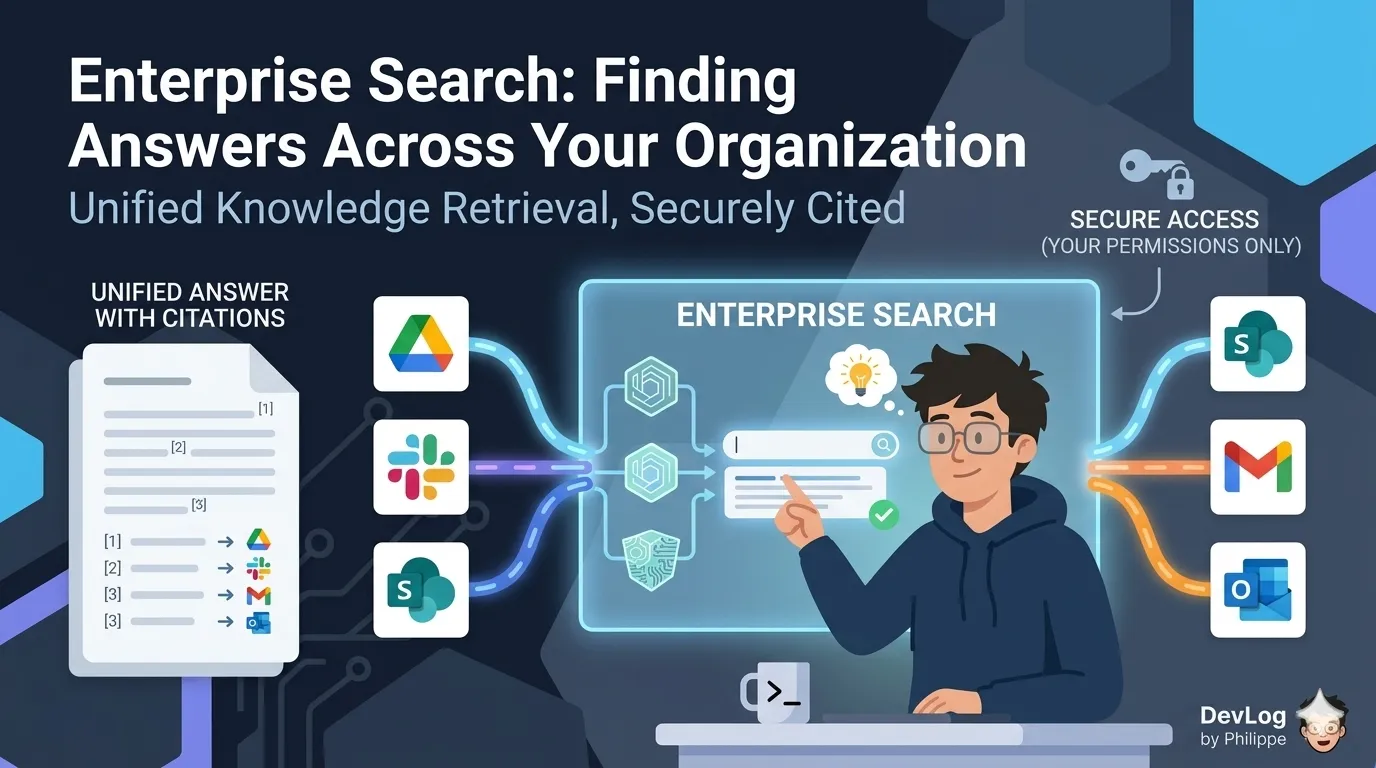
Most of the knowledge your organization relies on isn’t in any one place. A policy might live in SharePoint. A decision about that policy might sit in a Slack thread from three months ago. The email thread where everyone agreed on the final wording could be buried in Outlook. And the meeting notes capturing how the team actually implemented it are somewhere in Google Drive.
When you need to answer a question that touches all of this — “What did we decide about remote work eligibility for new hires, and how has it evolved?” — you typically end up doing detective work across four or five different tools, piecing together fragments into something coherent. It’s tedious, it takes time, and it assumes you even know where to start looking.
Enterprise Search is designed to solve exactly this problem. It’s a feature built into Claude for organizations on Team and Enterprise plans that gives you a single place to ask questions that span your company’s connected tools — and get a unified, cited answer in return.
This post walks through what Enterprise Search is, when to reach for it, how to get it set up, and how to use it effectively while respecting your organization’s security and privacy boundaries.
What Enterprise Search Actually Is
When Enterprise Search is turned on for your organization, you’ll see a new item in your Claude sidebar labeled “Ask {Your Org Name}” — for example, “Ask Acme.” This is a dedicated Claude project, pre-configured by Anthropic, built specifically for unified knowledge retrieval across your company’s tools.
If the word project is new to you, it’s a concept we cover elsewhere in the course in more depth, but the short version is: a Claude project is a self-contained workspace that has its own instructions, its own memory, and its own set of tools available to it. The Enterprise Search project is a special case — one that Anthropic has already configured with optimized instructions for searching organizational knowledge. You don’t have to build it yourself.
What makes this project different from just asking Claude a question in a regular chat is its integration with connectors. Connectors are the links between Claude and your external tools — Slack, Google Drive, SharePoint, Gmail, and so on. When you ask a question inside the Enterprise Search project, Claude can reach into all of the connected tools at once, pull relevant content, and synthesize a single response with citations pointing back to where the information came from.
The advantage is significant. Instead of opening four tabs and running four searches, you ask one question and get one answer. Claude handles the coordination behind the scenes.
When to Reach for Enterprise Search
Enterprise Search is built for questions that are multi-source by nature — questions where the answer isn’t in any single document but emerges from pulling together context from several places. Here are the kinds of situations where it’s most valuable.
Getting up to speed after time away. If you’ve been on leave or away from a project for a while, you can ask Claude to summarize the key decisions, discussions, and changes that happened in your absence. It can pull from team chats, emails, and shared documents to give you a consolidated briefing.
Policy and process questions. “What’s our approved vendor list for consulting services?” or “What’s the process for requesting a new laptop?” are exactly the kinds of questions that usually require knowing which document to look in. Enterprise Search lets you just ask, and Claude finds the relevant policy and surfaces it.
Research and competitive analysis. When you need to pull together internal knowledge about a topic — all the notes, decks, and conversations your team has generated about a particular market, competitor, or product — Enterprise Search can assemble that mosaic far faster than manual searching.
Onboarding new team members. New hires often don’t know what they don’t know. Giving them access to a tool where they can ask questions in plain language — “Who owns our data infrastructure?” or “What are the different customer segments we sell to?” — can dramatically shorten the ramp-up period.
Tracking project decisions. Over the course of a long project, decisions get made in meetings, confirmed in chat, and documented in different places. When you need to reconstruct how and why a decision was made, Enterprise Search can trace the conversation across tools.
What Enterprise Search is not designed for is quick single-fact lookups. If you just need to find one specific file whose name you already know, it’s probably faster to open the source tool directly. The real value of Enterprise Search shows up when the question is complex, the answer is distributed, and synthesis is the hard part.
How Setup Works
Enterprise Search is enabled by default for all Team and Enterprise plan organizations in Admin settings, but before anyone else in the organization can use it, an Owner needs to complete an initial setup. There’s a clear two-part flow: one part for admins, one for users.
For the Owner: Initial Configuration
An Owner is someone with top-level administrative permissions in the organization. If you’re the Owner (or Primary Owner), here’s what setup looks like.
You’ll see the “Ask Your Org” project in your sidebar with a setup prompt. Clicking Set up for your org starts the guided onboarding. From there, you’ll be asked to connect some tools to the project. At minimum, the setup requires:
- A Documents connector — typically Google Drive or SharePoint, depending on where your organization stores files.
- A Chat connector — typically Slack or Microsoft Teams.
An Email connector (Gmail or Outlook) is recommended but optional. You can also add more connectors by clicking + Add more, which lets you either pick from the Connectors Directory or add a custom connector built on the Model Context Protocol (MCP).
If at any point the Owner decides to stop using the feature, it can be disabled organization-wide from Organization settings > Capabilities. That action removes the Enterprise Search project from every user’s sidebar.
For Users: Getting Started
Once the Owner has completed setup, the Enterprise Search project becomes available to everyone in the organization. You’ll see it starred in your sidebar by default, under the name “Ask {your organization}.”
The first time you open it, you’ll be walked through a guided flow to authenticate with each of the connected services. This is important: even though the Owner has enabled the connectors at the organization level, each individual user still has to sign in to each service with their own credentials. This is what ensures that search results respect your personal permissions — you only see what you already have access to.
Once you’ve authenticated, you can start asking questions right away.
After the initial setup, you can also add more connectors yourself. From inside the Enterprise Search project, click Connect in the Instructions section to authorize additional tools that have been enabled at the organization level. If you want to fine-tune which connectors are active for a given search, click Search and tools in the lower left of the project and toggle individual connectors on or off — those changes apply to new conversations in the project.
Asking Good Questions
Enterprise Search works best when you give it enough specificity to narrow the search meaningfully. Some patterns that consistently produce good results:
Be specific about which sources to use. Instead of “Find information about the product launch,” try “Search Slack and Google Drive for discussions about the Q4 product launch.” This guides Claude toward the right tools and reduces noise.
Use date ranges when relevant. “Summarize emails from last week about the budget review” focuses the search in a way that produces tighter, more useful results than an open-ended query.
Combine sources deliberately. “Compile information from SharePoint documents, Slack discussions, and meeting notes about our hiring process” tells Claude exactly which tools to synthesize across.
Break complex questions into steps. For thorough research, you can ask Claude to search one source at a time and then synthesize findings. This gives you more control over the process and often produces better answers than a single sprawling query.
How Security and Privacy Work
Enterprise Search is designed around a principle that’s worth stating clearly: Claude can only see what you can already see. Results are permission-aware, meaning if you don’t have access to a document or a Slack channel in the original tool, Claude won’t retrieve it for you either. Enterprise Search isn’t a back door — it’s a search overlay that respects every permission boundary that already exists in your organization’s tools.
A few specific points are worth understanding:
No external indexing. Claude doesn’t build a separate index of your organization’s data. Every search is performed in real time by making calls to the connected services. Your content isn’t stored in Anthropic’s systems to serve future queries.
User-level authentication. Each person authenticates with their own credentials for each connected service. This means search results are scoped to the individual user — not the organization as a whole.
Conversations are private by default. A conversation you have within the Enterprise Search project is private to you, just like any other Claude conversation. You can choose to share it manually, but it isn’t visible to other members of your organization by default.
Data retention follows your organization’s policies. On Enterprise plans, conversations inside the Enterprise Search project follow whatever data retention policies your organization has configured. Search results are retained with their associated chats, and you can delete search data by deleting the associated conversation.
Organizational policies still apply. Every access control, every permission rule, every compliance boundary in your existing tools remains fully in force. Enterprise Search is built on top of those systems; it doesn’t override them.
Putting It All Together
Enterprise Search reflects a simple idea: most of the time, the knowledge you need already exists somewhere in your organization. The hard part isn’t the information itself — it’s finding it, connecting the pieces, and synthesizing them into something you can actually use.
By bringing your connected tools together under a single, searchable surface — and by respecting every permission and policy that governs those tools — Enterprise Search turns what used to be a scavenger hunt into a conversation. You ask a question. Claude does the gathering and the stitching. You get an answer with citations that tell you where everything came from.
For organizations that have invested in connecting Claude to their work tools, Enterprise Search is often the feature that makes the investment click. It’s the difference between having Claude available and having Claude actually working as a knowledgeable collaborator inside the context of your business.
Further Reading
- Use enterprise search — Dedicated project feature for searching across organizational knowledge sources with connector integrations and privacy controls
- What are projects? — Projects feature including knowledge bases and RAG for organizing and retrieving organizational information
- Retrieval augmented generation (RAG) for projects — RAG mode that expands project knowledge capacity for large document retrieval on demand
- Use Cowork on Team and Enterprise plans — Administrative setup and constraints for deploying Cowork on organizational plans