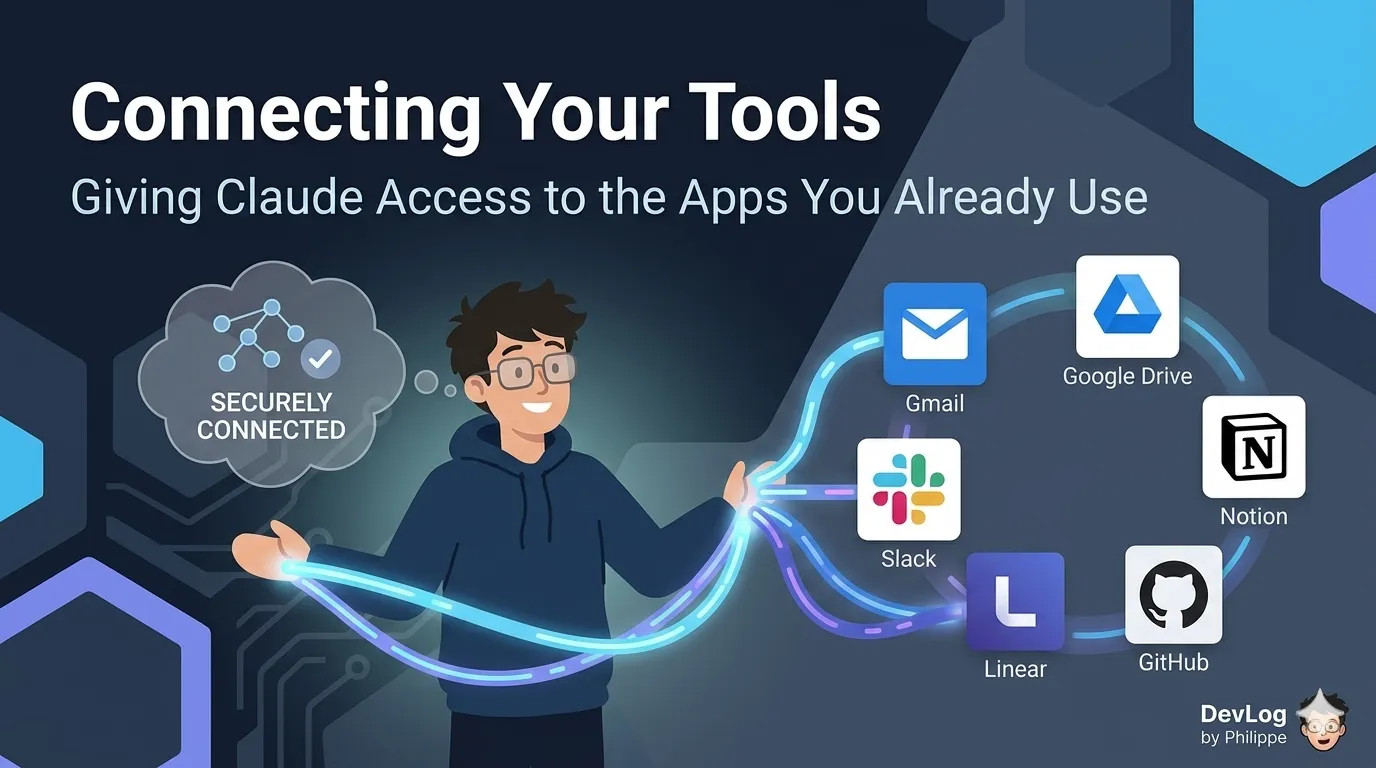
When you first start using Claude, every conversation begins from a blank slate. You type or paste the context Claude needs, upload any relevant files, and go from there. That works well for self-contained tasks. But a lot of professional work isn’t self-contained — it lives inside the tools you use every day: Gmail, Google Drive, Slack, Notion, Linear, GitHub, Salesforce, your company’s internal systems. Describing what’s in those tools, conversation by conversation, is slow and often unsatisfying.
This is the problem connectors solve. Connectors are the links between Claude and the external tools and services where your work actually lives. Once connected, Claude can search your files, pull information from your inbox, check your calendar, update a project management board, or query a company database — all within a normal conversation, without you having to copy and paste anything.
This post explains what connectors are, the two main types you’ll encounter, how they work under the hood, how to set them up, and — importantly — how to think about the security and permissions involved. By the end, you’ll have a clear map of how to extend Claude from a capable assistant into an informed collaborator with access to your actual work.
What Is a Connector?
A connector is a piece of configuration that lets Claude talk to another service on your behalf. Once you’ve connected a service, Claude can retrieve data from it and, depending on the connector’s capabilities and your permissions, take actions within it. You might connect Claude to Linear so it can read and create issues, to Slack so it can send messages or summarize channels, or to Google Drive so it can search and reference your files.
The important thing to understand is that a connector doesn’t give Claude open-ended access to a service. It gives Claude access bounded by two things: the capabilities the connector exposes, and the permissions you already have in the source system. Claude inherits each person’s permissions from the connected service. If someone can’t access a specific file, channel, or record in the source system, the connector can’t reach it from Claude either. If you don’t have access to a particular Notion page or Salesforce record, Claude can’t magically reach it through a connector. Your existing permissions stay intact.
Connectors work across the full Claude ecosystem — the web interface at claude.ai, Claude Desktop, Cowork, Claude Code, the mobile apps, and even the API. Once you’ve set a connector up on one surface, it’s typically available everywhere you use Claude.
Two Types of Connectors: Web and Desktop
Connectors come in two flavors, and understanding the difference will save you some confusion when you start setting them up.
Web connectors (sometimes called remote connectors) link Claude to cloud services — SaaS tools like Slack, Notion, Linear, GitHub, Gmail, Google Drive, Asana, Stripe, and so on. These are the default. Most connectors are remote — they’re the default choice and work everywhere you use Claude. Web connectors live in Anthropic’s cloud infrastructure, which means once you’ve authenticated with a service, the connection is available from every Claude surface: web, desktop, mobile, Cowork, and Claude Code.
Desktop extensions are a different mechanism. They run locally on your computer and are only available inside the Claude Desktop app and Claude Code. Desktop extensions are the right choice when the tool runs on your computer — local files, a database on localhost, a desktop application — or the tool needs OS-level access (filesystem, clipboard, local processes). You’d reach for a desktop extension if you want Claude to work directly with files on your hard drive, interact with a native application like Figma, or connect to a database running on your own machine.
The practical takeaway: if the tool you want to connect is a cloud service with a login page, you almost certainly want a web connector. If it’s something running locally on your computer, you want a desktop extension.
The Technology Underneath: MCP
You don’t need to understand the technical plumbing to use connectors, but it’s worth knowing the name because you’ll see it mentioned often. Connectors are built on top of a standard called the Model Context Protocol, or MCP. MCP is an open protocol for connecting AI models to tools and data sources. It’s often described as “USB-C for AI” — a universal standard that lets any AI model talk to any compatible service, so software developers don’t have to build a new integration for every AI tool on the market.
For most users, MCP is invisible. You click Connect, authenticate, and start using the service. But the protocol is what makes two important things possible: first, that a wide and growing ecosystem of connectors works consistently with Claude, and second, that technically-minded teams can build their own connectors for internal services that no one has built an official integration for yet.
Setting Up a Web Connector
The setup flow for a web connector is intentionally straightforward. From inside a conversation with Claude, click the ”+” button in the lower-left of the chat interface (or type ”/” to open the menu), then click the ”+” next to Connectors. This opens the Connectors modal, where you can browse available services by category or scroll through the complete list.
When you find the connector you want, click into its listing, review the description and capabilities, and click Connect (or Install for desktop extensions). You’ll then be walked through an authentication process — usually via OAuth, which is a standard protocol for granting one service limited access to another.
Once you’re authenticated, the connector is available in your conversations. You can confirm which connectors are active in any given chat by clicking the ”+” button and looking under Connectors — you’ll see toggles you can flip on and off per conversation.
There’s one wrinkle for organizations. On Team and Enterprise plans, an Owner has to enable each connector at the organization level before individual users can authenticate with it. This is a deliberate security design: making a connector available to your team isn’t the same as granting anyone access. Each person still authenticates individually and sees only the data they already have permission to access.
Permissions and What Claude Can — and Can’t — Do
The permissions model for connectors is layered, and it’s worth understanding because it has direct implications for what Claude will and won’t do on your behalf.
At the first layer, Claude can only access data that you have access to in the source system. This is enforced by the service itself, not by Claude. If you can’t open a particular Google Drive folder, neither can Claude.
At the second layer, the connector itself defines a set of capabilities — essentially, a list of actions Claude is allowed to perform. Some connectors are read-only (Claude can search and retrieve but not modify anything). Others support writes (creating issues, sending messages, updating records). The connector’s listing in the directory tells you which capabilities it exposes.
At the third layer, organizations can further restrict what Claude is allowed to do. Owners on Team and Enterprise plans can limit which actions a connected service can take across your organization. For example, you can allow a connector to read data from a service while preventing it from writing any changes back. You might allow Claude to search and summarize email while preventing it from sending messages, or let Claude read Google Drive documents while blocking creation or editing. These restrictions apply organization-wide and can’t be overridden by individual users.
The practical upshot is that connectors are designed with a strong respect for existing access boundaries. You, as an individual user, are always the ceiling: Claude never has more permission than you do.
Managing Many Connectors: Tool Access Modes
If you connect a handful of services, you’ll probably never think about this section. But as your connector library grows — especially once you’re past ten or so — you’ll start noticing that each connector takes up some space in Claude’s working memory during a conversation. That space is finite, and the more connectors are loaded at once, the less room there is for your actual documents, code, or chat history.
To handle this, Claude offers three tool access modes that control how connectors are loaded. Auto (default): Claude decides dynamically which connectors to load based on what you’re working on. This is the right setting for most people. Claude figures out which connectors are relevant to the task at hand and loads only those.
Always available loads every connector at the start of the conversation. It’s best when you have a smaller set of connectors that you use constantly and don’t want Claude to spend any time figuring out which to load.
On demand goes the other direction. Connectors aren’t loaded until Claude searches for the right one based on your request. Best for: Large connector libraries (10 or more), or when you’re running into conversation length issues. The trade-off is a small amount of latency — Claude takes an extra step to find the right connector — but the benefit is that none of the conversation’s capacity is spent on connectors you aren’t actively using.
You can set the mode per conversation by opening the ”+” menu, hovering over Connectors, and clicking Tool access. For most users, leaving it on Auto and only adjusting when you notice friction is the right approach.
Interactive Connectors: Working Inside the Conversation
For a growing number of services, connectors can do more than return text responses. Interactive connectors can render live, interactive apps directly inside the Claude conversation — dashboards, task boards, design tools, and similar interfaces that you can actually use without leaving the chat.
The experience looks like this: you ask Claude about a project’s status, and instead of just describing it, Claude opens the relevant board — an Asana board, say, or an analytics dashboard — right in the conversation. You can update statuses, check off tasks, or explore visualizations, and keep chatting with Claude in the same window. Interactive connectors run in sandboxed iframes, which is a technical way of saying the embedded interface is isolated from everything else for security reasons, and they use the same permissions you already granted when connecting the service — they don’t request extra access.
Interactive capability is marked with an “Interactive” badge in the Connectors Directory, so you can see at a glance which services support it. The list is growing over time.
Custom Connectors: When You Need Something That Doesn’t Exist Yet
If your team uses an internal service, or a tool that doesn’t have an official Anthropic connector yet, you can build a custom connector using remote MCP. The idea is simple: someone in your organization hosts an MCP server on the public internet, and Claude connects to it the same way it would connect to any other service.
There are a few things worth knowing if you or your team are considering this path. The custom connector’s server must be reachable over the public internet from Anthropic’s servers — it can’t live behind a VPN or firewall without additional configuration. Servers hosted on a private corporate network, behind a VPN, or blocked by a firewall won’t connect, even if you can reach them from your own machine. And because custom connectors haven’t been through Anthropic’s verification process, the usual cautions apply with extra force: only connect to servers you genuinely trust.
On Team and Enterprise plans, only Owners can add custom connectors to the organization. Individual users then authenticate and use them the same way they’d use any directory connector.
Practical Uses, by Category
The real value of connectors becomes clear when you see what they make possible in day-to-day work. Rather than listing specific tools (the directory is always growing), here’s how to think about connectors by category.
Project management tools (Asana, Linear, Jira, and similar). Connect these and Claude can check your priorities for the week, create or update issues from a description, pull project status summaries, or cross-reference what different teams are working on.
Communication tools (Slack, Gmail, Teams, and similar). With these connected, Claude can find threads on a specific topic, draft replies grounded in the actual conversation history, pull out the key decisions from a long channel discussion, or help you catch up after time away. For Gmail specifically, Claude can search and read your inbox and draft emails — but by design, Claude creates drafts in your Gmail account, but cannot send emails on your behalf. The final send is always yours.
Documentation and knowledge tools (Notion, Google Drive, SharePoint, Confluence, and similar). These are often the highest-value connectors for professional work. Claude can search across your knowledge base, summarize long documents, cross-reference meeting notes against action items, or pull the relevant sections of a policy when you’re drafting something new.
Business systems (Stripe, Salesforce, HubSpot, and similar). For teams in sales, finance, or operations, connecting these systems lets Claude review revenue trends, pull opportunity data, summarize customer interactions, or surface patterns that would be tedious to find manually.
Developer tools (GitHub, GitLab). For anyone who writes or reviews code, a GitHub connector lets Claude reference the actual state of a repository — recent commits, open pull requests, issue history — instead of working from context you have to describe.
The common thread across all of these is that the connector transforms the conversation from “me describing my work to Claude” into “Claude reading my work directly.” That shift is where connectors earn their keep.
Security: What to Watch For
Connectors are powerful, and that power comes with responsibilities worth taking seriously.
First, only connect services you trust and need. Each connection is an active permission grant to a live account — treat it with the same care you’d give to any other OAuth authorization.
Second, review the connector’s capabilities before connecting. The listing describes what the connector can do. If a connector requests write access to a system where read access would be sufficient, that’s worth thinking about.
Third, take tool approval prompts seriously. When Claude wants to invoke a specific tool — especially a write action — it will often ask for your approval. Only use “Allow always” for tools and services you trust to run without supervision.
Fourth, remember that you can revoke access at any time. If you no longer need a connector, disconnect it from Claude’s settings. If you ever suspect something has gone wrong, you can also revoke access from the third-party service’s security settings, which takes effect immediately.
Finally, for custom connectors, apply an extra layer of scrutiny. Anthropic-verified connectors in the official directory have been reviewed. Custom connectors have not — which is fine if you built or trust the server in question, but worth being aware of.
Where Connectors Fit in the Larger Picture
Connectors are one of the most significant shifts in how Claude fits into professional work. Without them, Claude is a capable but isolated assistant — it knows only what you tell it in the conversation. With them, Claude becomes part of the same information environment you already work in. It sees what you see. It can act where you act, within limits you control.
That integration changes the texture of day-to-day use. Instead of copying an email thread into Claude to ask for a summary, you ask Claude to find it. Instead of describing a project’s status, you ask Claude to check. Over time, this shift compounds — the connectors you set up once quietly make every future conversation more useful.
The next lesson in this course will look at Enterprise Search, a feature that builds directly on the connector foundation to help organizations synthesize knowledge across multiple connected tools in a single, cited response.
Further Reading
- Use connectors to extend Claude’s capabilities — Overview of enabling connectors to access apps, retrieve data, and take actions including custom remote MCP connectors
- When to use desktop and web connectors — Comparison between local desktop extensions (local file/app access) and remote web connectors (cloud services)
- Manage Claude’s tool access — Configuring connector tool access modes (Auto, Always available, On demand) for conversation space optimization
- Use Google Workspace connectors — Integrating Gmail, Google Calendar, and Google Drive with Claude for email search, calendar management, and document access
- Using the GitHub Integration — Connecting GitHub repositories to Claude for codebase context in development tasks
- Enabling and using the Microsoft 365 connector — Read-only MCP connector for SharePoint, Outlook, Teams, and calendar access
- Get started with custom connectors using remote MCP — Connecting Claude to internet-hosted remote MCP servers for external application interaction
- Getting Started with Local MCP Servers on Claude Desktop — Installing and managing local MCP servers via single-click desktop extension packages
- Deploying enterprise-grade MCP servers with desktop extensions — Local MCP server deployment through Claude Desktop extensions with enterprise-grade access controls