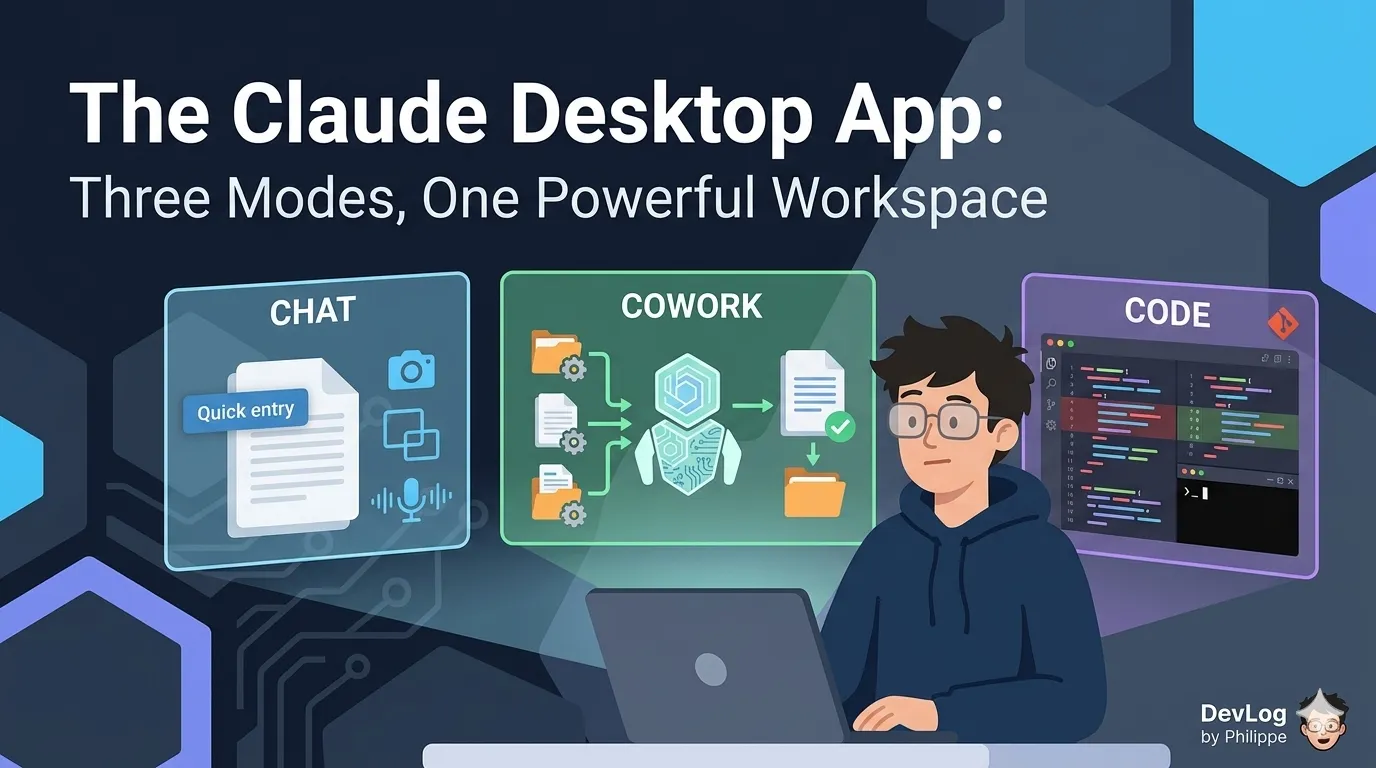
If you’ve been using Claude through the browser at claude.ai, you already know its core capabilities — the conversational interface, file uploads, Projects, Artifacts, and so on. The Claude desktop app gives you all of that, plus a set of features that are simply not possible in a browser tab. And beyond the familiar chat interface, the desktop app introduces two additional modes — Cowork and Code — each designed for a fundamentally different kind of work.
This lesson is about understanding those three modes, what each one is optimized for, and how to choose between them. By the end, you’ll have a clear mental model for when to reach for each one.
Why a Desktop App at All?
Before diving into the modes themselves, it’s worth pausing on the question: if Claude works fine in a browser, why install a desktop app?
The short answer is access. A browser-based tool operates in a deliberately isolated environment — it can’t reach into your file system, interact with other applications on your computer, or run background tasks while you’re doing something else. The desktop app removes those constraints. It can read from and write to local folders you specify, run in the background, respond to keyboard shortcuts while you’re inside another application, and execute complex multi-step tasks that continue working even after you’ve stepped away from your computer.
The desktop app is available for both macOS and Windows and can be downloaded from claude.com/download. Once installed, you sign in with the same account you use on the web, and your conversations, Projects, and settings are synchronized across all your devices.
Mode One: Chat
Chat in the desktop app is the same conversational Claude you know from the browser — but with a handful of desktop-native capabilities layered on top.
Quick Entry
The most immediately useful addition for most people is quick entry: a keyboard shortcut that summons Claude as a floating overlay over whatever application you’re already working in. On macOS, you trigger it by double-tapping the Option key. The overlay appears on top of your current window without requiring you to switch applications.
Once quick entry is open, you have a few ways to get context into Claude quickly:
Screenshot capture. You can click and drag to take a screenshot of any part of your screen — a specific chart, a paragraph of text you want to rephrase, an error message, a table — and attach it directly to your message. No saving, no uploading, no describing what you’re looking at. You just capture it and ask.
Window attachment. Rather than a cropped screenshot, you can click on an entire application window to attach its contents. If you have a document open in another app, you can capture the whole thing and bring it into context without leaving your workflow.
Voice dictation. For macOS 14 and later, you can press Caps Lock to start dictating your message and Caps Lock again to stop. Your words are transcribed in real time. This is particularly useful for situations where you want to think out loud rather than type — brainstorming sessions, capturing observations while reviewing something, or just those moments when speaking is faster than typing.
Desktop Connectors
The desktop app also supports desktop extensions — installable packages that connect Claude to local applications and data on your computer. These are different from the web connectors you might already use (like Gmail or Google Drive). Desktop extensions give Claude access to things that live on your machine: your local file system, calendar data, messages, and other desktop applications. You can browse available extensions in Settings > Extensions within the desktop app.
Think of them as browser extensions, but for Claude’s access to your desktop environment.
Mode Two: Cowork
Cowork is the mode for sustained, complex work — the kind of task that has multiple steps, takes more than a few minutes, and benefits from Claude having direct access to your files.
What Makes Cowork Different
In a standard chat conversation, Claude responds to one message at a time. You write a prompt, Claude replies, you write another prompt, and so on. The back-and-forth is fast, but you’re always in the loop driving each step.
Cowork changes this model. Instead of a conversation, you hand Claude a task and describe the outcome you want. Claude analyzes the request, creates a plan, breaks complex work into subtasks, runs code and shell commands in an isolated environment on your computer, and delivers finished outputs back to your file system — with progress visible throughout so you can steer if needed.
This is a meaningful shift. Instead of asking Claude to draft a report section by section, you might describe the full research synthesis you need and then step away while Claude works through it. Instead of manually organizing files, you describe the structure you want and let Cowork handle the reorganization.
What Cowork Can Do
Cowork is well suited for tasks like:
- Research synthesis: pulling together information from multiple sources and producing a structured document
- Document generation: drafting, formatting, and saving files directly to folders you’ve specified
- File organization: sorting, renaming, and restructuring local files according to rules you define
- Scheduled automations: tasks that run on a recurring schedule, such as a daily briefing or weekly summary, without requiring you to initiate each one
Speaking of scheduled tasks — this is one of Cowork’s most distinctive capabilities. You can set up a task to run automatically at a specified time or interval, entirely without your involvement. Scheduled tasks run as long as your computer is awake and the Claude Desktop app is open.
Folder Access and Permissions
Cowork requires you to explicitly share which folders Claude can access. Claude can read, write, and delete files within those folders — which is powerful, but also worth approaching with some care.
Plugins and Integrations
Within Cowork, you can install plugins — pre-configured packages that bundle specialized tools and data sources for specific use cases. Financial modeling, equity research, and other domain-specific workflows are available as plugins. Each plugin bundles together skills, connectors, and sub-agents into a single installable package, which means a single plugin can significantly extend what Claude is able to do within a session.
Assigning Tasks from Your Phone
For users on Pro and Max plans, Cowork supports a feature called Dispatch that lets you send tasks to Claude from the mobile app. Your desktop computer stays active and executes the work; your phone becomes a way to assign tasks and receive results without being physically at your desk. This is genuinely useful for off-hours requests — you can send Claude a task from your phone on the way to work and find the result waiting when you arrive.
Who Can Use Cowork
Cowork is available on all paid plans — Pro, Max, Team, and Enterprise — and requires the Claude Desktop app. It is not available on the web or mobile interfaces (though mobile can trigger Cowork work via Dispatch as described above). The desktop app must remain open for Cowork to complete a task; closing the app ends the session.
Mode Three: Code
The third mode in the Claude desktop app is Code — a full development environment powered by Claude Code.
What Claude Code Is
Claude Code is Anthropic’s agentic coding tool. It gives developers a way to delegate complex software development tasks to Claude, with Claude taking real actions — writing files, running commands, navigating codebases — rather than just generating text suggestions.
In the context of the desktop app, Code brings this capability into a visual interface rather than requiring a terminal window. You can interact with Claude Code without needing to be comfortable with the command line.
Three Interaction Modes Within Code
Code offers three ways to work, depending on how much autonomy you want Claude to have:
Ask — Claude reviews every proposed change with you before applying it. Nothing is written to your files without your explicit approval. This is the appropriate mode when working on sensitive codebases, learning from Claude’s suggestions, or doing careful review work.
Code — Claude applies file changes automatically as it works. This mode is faster and more autonomous, suited for routine tasks, boilerplate generation, or situations where you trust the scope of what Claude is doing and don’t need to approve every individual edit.
Plan — Before taking any action, Claude produces a complete outline of its intended approach. You review the plan, request changes if needed, and then authorize Claude to execute. Plan mode is valuable for large or complex tasks where understanding the full scope before any code is touched is important.
Local and Remote Environments
Code can run in local or remote environments. In a local environment, Claude operates on your own machine — reading and modifying files in your repository, running commands in a terminal on your computer. In a remote environment, Claude works on a cloud-based instance, which can be useful for long-running tasks or for working on projects where you don’t want Claude executing commands directly on your local system.
Built-In Development Tools
The Code environment includes several features that developers will find familiar: visual diffs (side-by-side comparisons of what changed), a built-in terminal, and Git integration for tracking changes and managing version history.
Who Can Use Code
Code is available to users on Pro, Max, Team, and Enterprise plans. Like Cowork, it requires the desktop app.
Choosing the Right Mode
With three modes available, the practical question is: when do you use each one?
A straightforward way to think about it: Chat is for interactive, back-and-forth work where you want to stay engaged in the conversation — drafting, exploring ideas, asking questions, iterating on responses. Cowork is for delegating a defined outcome to Claude and stepping back while it executes, especially when that work involves your local files. Code is for software development tasks where Claude needs to read, write, and run code on a real codebase.
Here are a few concrete examples:
| Task | Best Mode |
|---|---|
| Draft an email, then refine the tone | Chat |
| Ask Claude a question while using another app | Chat (via Quick Entry) |
| Synthesize research from multiple documents into a report | Cowork |
| Reorganize a folder of files according to a naming convention | Cowork |
| Set up a daily briefing that runs automatically each morning | Cowork (scheduled task) |
| Write a new feature from a plain-English description | Code |
| Debug an error in an unfamiliar codebase | Code |
| Automate repetitive changes across many files | Code |
The modes are not mutually exclusive within a session — you might start with a Chat conversation to think through an approach, then switch to Cowork to execute on it, or open Code to implement the technical piece.
A Note on Safety
Because Cowork and Code operate with more autonomy than a standard chat — executing commands, modifying files, and taking actions on your behalf — they require a more thoughtful posture than you might bring to an ordinary conversation.
A few principles worth internalizing before diving in:
Start with lower-stakes tasks and build trust gradually, in the same way you would with a new colleague who’s capable but unfamiliar with your specific environment and preferences. Review Claude’s planned actions before approving them, particularly when working with sensitive files. Be deliberate about which folders you share and what plugins or desktop extensions you install, since each one expands what Claude can access and do. And pay attention to what Claude is actually doing — progress indicators and transparency into Claude’s reasoning are there for a reason.
These aren’t reasons to avoid Cowork or Code. They’re reminders that more capability calls for more care, which is a reasonable trade-off for the productivity gains these modes offer.
Summary
The Claude desktop app gives you three distinct modes for different kinds of work. Chat extends the familiar conversational Claude with desktop-native features like quick entry, screenshot capture, and voice dictation. Cowork enables hands-off delegation of complex, multi-step tasks with direct access to your local files, scheduled automations, and the ability to run work from your mobile device. Code provides a full development environment for software tasks, with three levels of autonomy and a built-in suite of developer tools.
The right mode depends on the nature of the work — and knowing the distinction between the three is what allows you to use each one well.
Further Reading
- Installing Claude Desktop — Installation for macOS and Windows including system requirements, desktop extensions, and Cowork overview
- Get started with Cowork — Introduction to Cowork as an agentic desktop feature for knowledge work with direct file access and scheduled tasks
- Use Cowork safely — Security risks and protective measures for Cowork including file access controls and permission management
- Using Claude Code with your Pro or Max plan — Configuring Claude Code with Pro or Max subscriptions including authentication and billing
- Claude Code FAQ — Frequently asked questions covering model access, IDE support, cost management, and CI/CD integration
- Use quick entry with Claude Desktop on Mac — Keyboard shortcut-based instant Claude access with screenshot capture and voice dictation